Loading Configuration Files
When you start the Config File Manager there are two options for loading configuration files:
Edit remote configuration files
Click Edit remote configuration files to manage configuration files from live services running anywhere in your CygNet environment.
|
Edit remote configuration files |
To edit remote configuration files
- Click to Edit remote configuration files.
|
Load files |
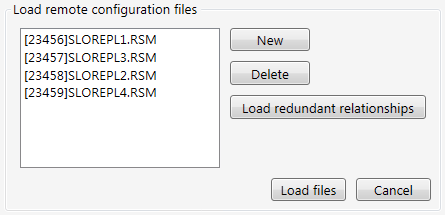
- Click New to add a one or multiple RSMs:
- Specify a Domain.
- Specify an RSM or click … to select one or more RSMs on that domain.
- You can select multiple RSMs using Ctrl+Click.
- Click Refresh to update the Service Selector.
- Click OK twice.
- Click Delete to remove any selected RSM.
- Click Load redundant relationships to load a redundant RSM.
- Specify a Domain.
- Specify an RSM or click … to select one or more RSMs on that domain.
- You can select multiple RSMs using Ctrl+Click.
- Click Refresh to update the Service Selector.
- Click OK twice. The redundancy definition will be retrieved from the RSM(s), and all defined redundant RSMs will be displayed.
- Click Load files.
- See Editing Keywords for more information.

Load local configuration files
Click Edit local configuration files to manage configuration files from services on your local server. The local services do not have to be running.
|
Edit local configuration files |
To edit local configuration files
- Click to Load local configuration files.
|
Load local configuration files |
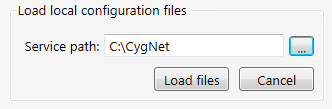
- Specify the path to the local services or browse to find the folder and click OK.
- Click Load files.
- See Editing Keywords for more information.
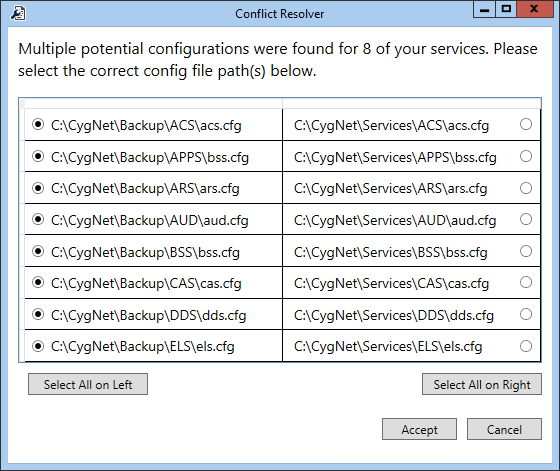
Resolving Conflicts when Loading Local Configuration Files
When loading local configuration files, the Config File Manager searches all directories and subdirectories for *.cfg files in alphabetical order. The utility may find files of the same name from different folders, for example, in a Backup folder and in a Services folder. To resolve conflicts when this occurs, a Conflict Resolver dialog displays the conflicting file names. The user has the option of choosing individual files, or clicking Select All on Left or Select All on Right. Once the choices have been made, clicking Accept will load the selected files.
|
Click the thumbnail to see a |